 Tivaro
Guide
Connect to a private database from your phone with an SSH tunnel
Updated 2026-11-23
Production databases usually are not exposed to the internet. They live in a private network and are reachable only from a bastion (jump) host. On a laptop you would run ssh -L; on Android TivaroSQL Studio does the same thing for you.
What you need
- An SSH host that can reach the database (e.g.
bastion.example.com). - An SSH user with a password or a private key (OpenSSH, PKCS#8 or PuTTY .ppk).
- Database host and port as seen from the bastion – often a private address such as
10.0.3.12:5432. - TivaroSQL Studio Pro (the SSH tunnel is a Pro feature).
Step by step
- Create a new connection for your engine (PostgreSQL, MySQL, SQL Server, Oracle or ClickHouse).
- Enter the database host and port exactly as the bastion sees them.
- Open the SSH tunnel section and enter the SSH host, port 22, user and password or key.
- Tap Test. On the first connection the app shows the server's key fingerprint – compare it with your server and accept. Later connections verify the key automatically (trust on first use).
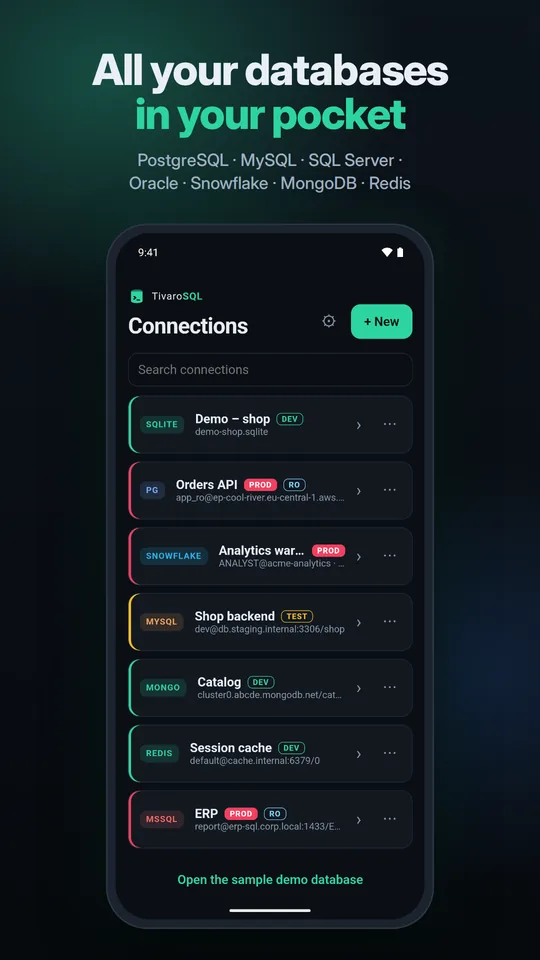
- Tag the connection PROD and consider read-only mode for on-call work.
Security tips
- Use a dedicated SSH key for the phone and remove it from
authorized_keysif the phone is lost. - Use a database user with minimal privileges; for checks, a read-only role is enough.
- Enable the app lock (fingerprint or PIN) for production connections.
- Secrets are encrypted with Android Keystore and never leave the device.